

Portal Guide
Request or Review Refunds
Use Reembolsos when an eligible payment needs to be returned to the customer or when you need to review refund status.
Before you start
- Confirm the original payment is eligible for refund.
- Confirm the amount to refund.
- Check your merchant policy for partial or full refunds.
- Keep the original payment reference available.
Refund fields
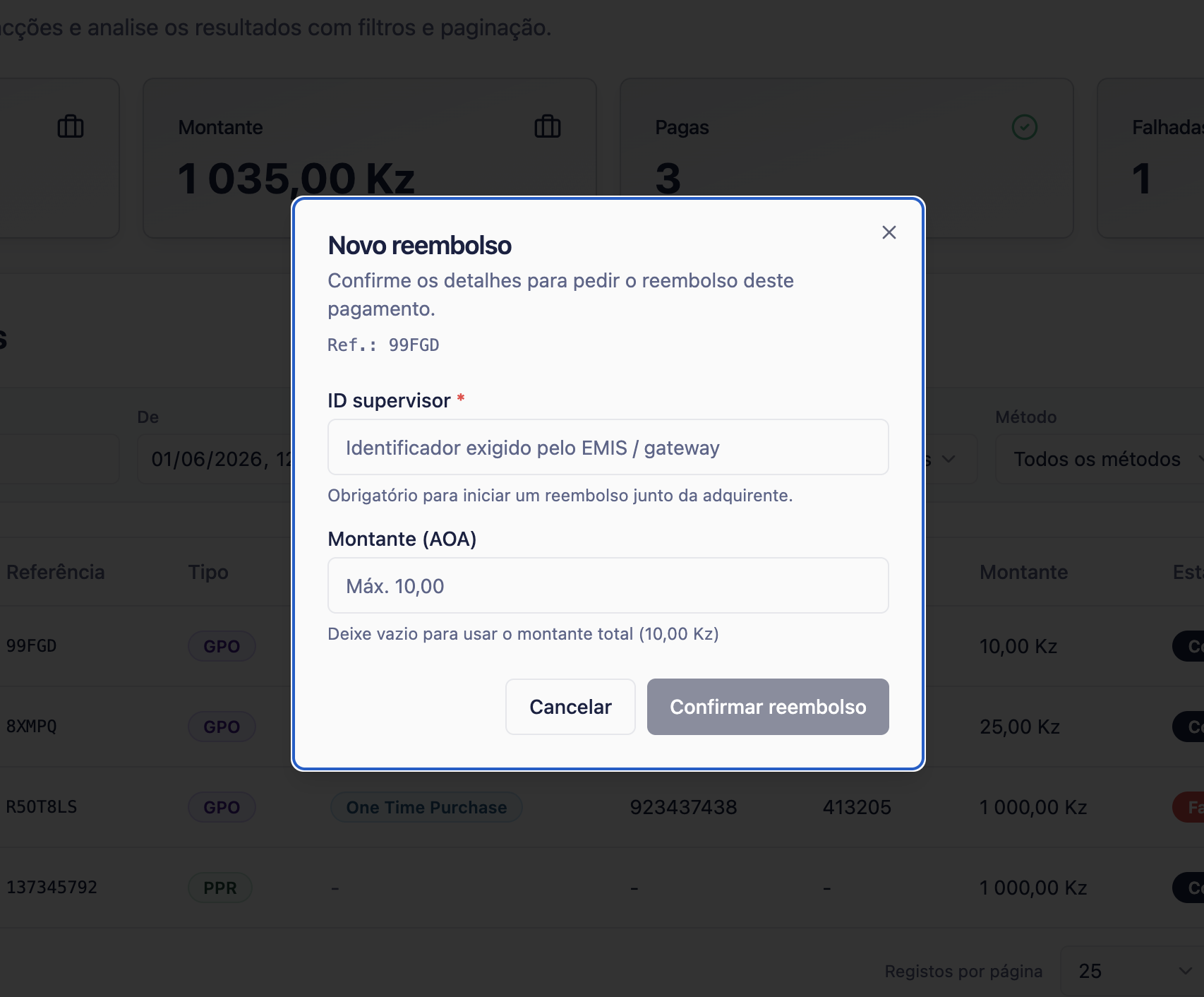
Original payment
The transaction the refund is linked to.
Refund amount
The amount you are returning to the customer.
Reason
The business reason for the refund, if the portal asks for it.
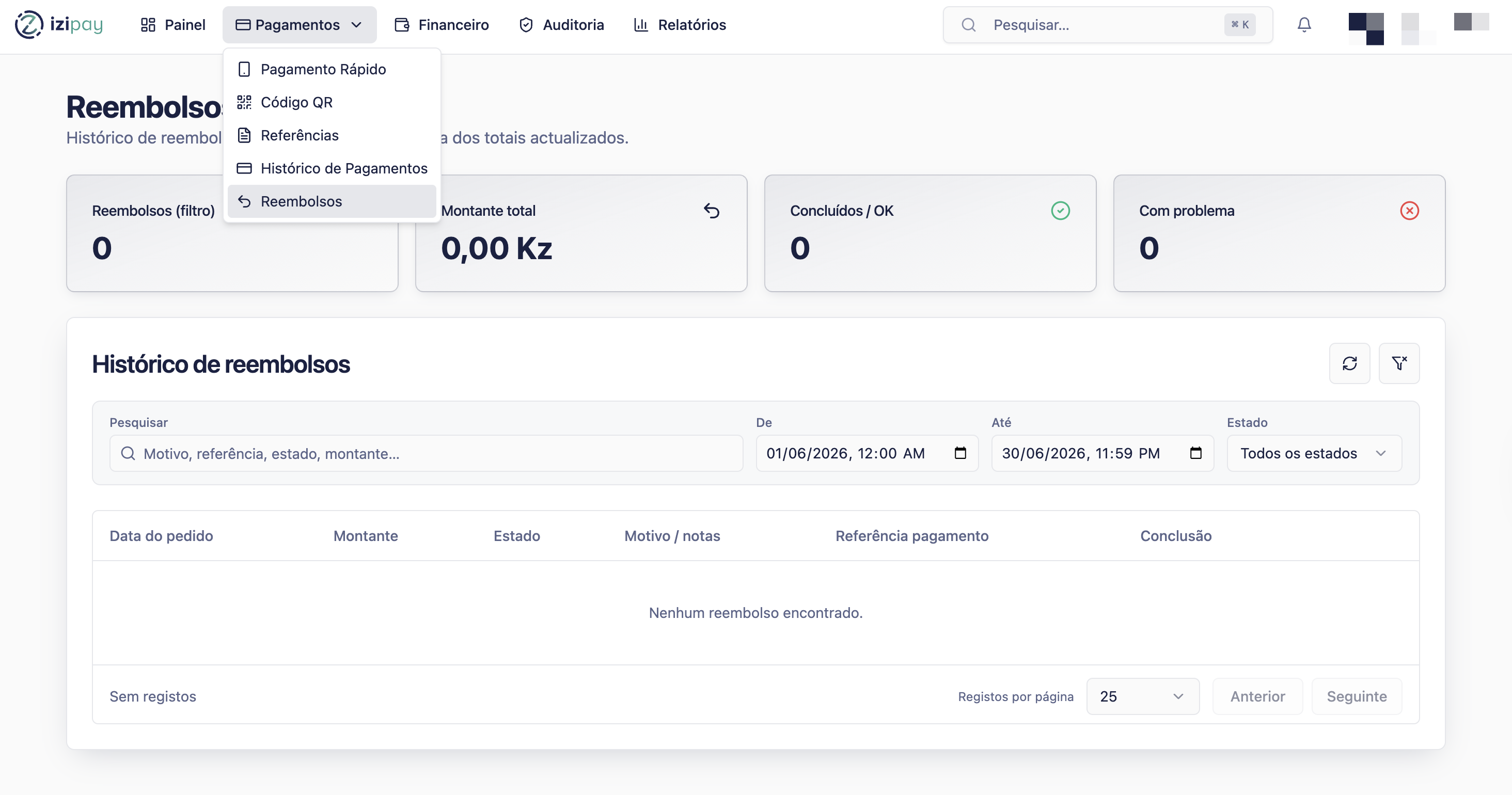
Refund status
Shows whether the refund is pending, approved, completed, or failed.
Step by step
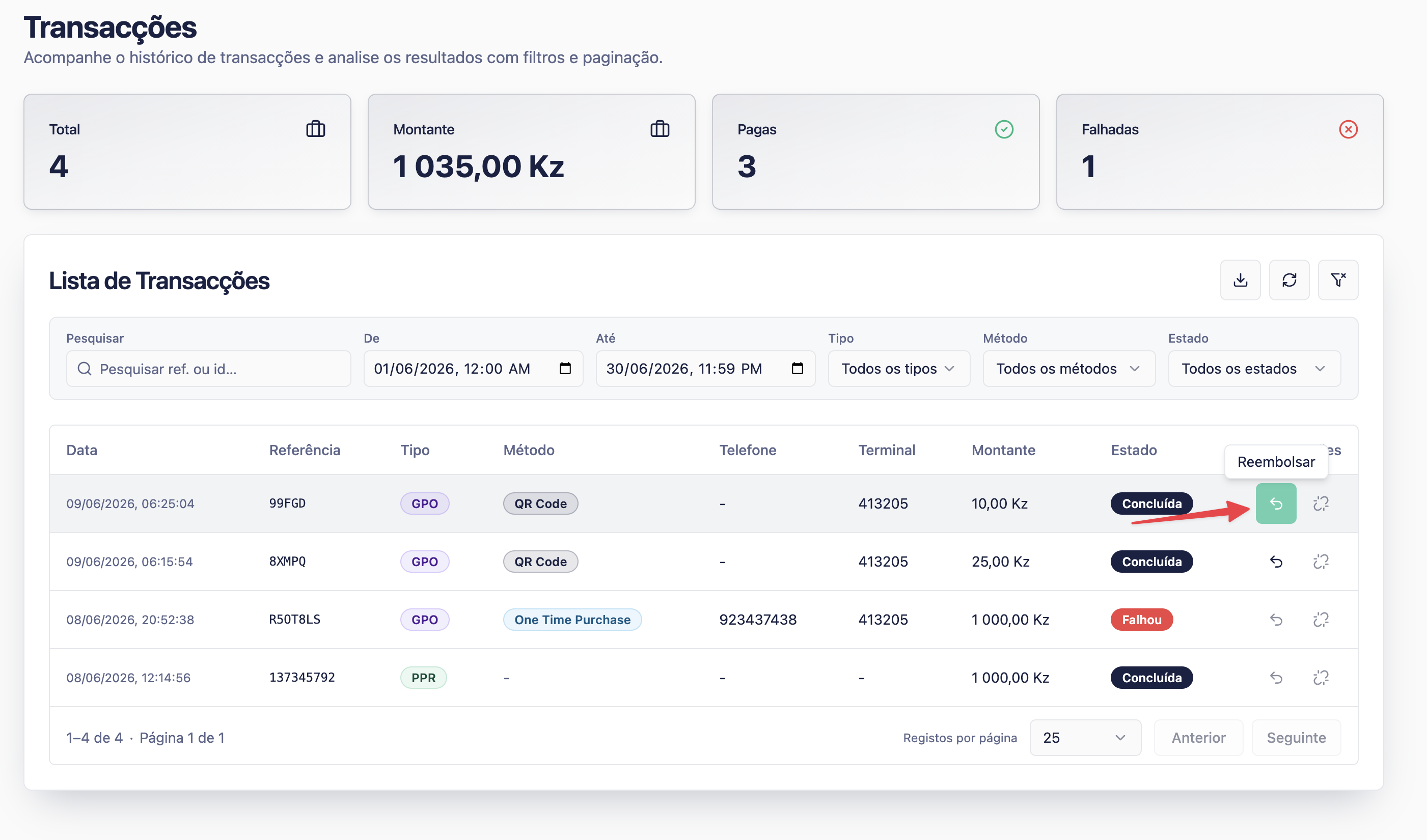
- Open Reembolsos.
- Search for or select the original payment.
- Enter the refund amount.
- Add the reason if required.
- Review all details before submitting.
- Submit the refund request.
- Monitor the refund status until it is completed or rejected.
Refund checklist
0 of 5 complete
0%
How to confirm success
Success signs
- The refund status shows completed or approved according to your process.
- The original payment and refund are linked.
- The customer support record includes the refund reference.
Common fixes
- If the refund fails, review the error and contact Helpdesk if it is unclear.
- If the payment is not eligible, follow your merchant support process.
- If the customer asks for proof, share only approved business information.
Last modified on