

Profile, Settings, and Helpdesk
Use Perfil, Definições, and Helpdesk to manage your account details, preferences, and support requests.
Before you start
- Confirm you are using your own user account.
- Do not share passwords, one-time codes, or private access details.
- Prepare payment references before contacting support.
- Check the role shown below your name in the account menu. It determines which portal pages and actions are available.
Merchant profiles and access
Each team member has one portal role. The role controls both what appears in the menus and what the portal allows the user to do. Access may be reduced further when a payment service, terminal, subscription, or notification capability is not enabled for the merchant.
| Profile | Intended user | Main permissions | Main limitations |
|---|---|---|---|
| Owner | Merchant account holder or person responsible for the business account | Full payment operations; refunds; references; terminals; dashboard; finance, reports, billing, and invoices; audit trail; Client Apps; Notificações; Integrações/webhook settings; and team management | Cannot remove themselves, change their own role from Team Management, or leave the merchant without at least one Owner |
| Manager | Trusted operations or finance lead | Payment operations; refunds; references; terminals; dashboard; finance, reports, billing, and invoices; view the team; manage Client Apps; Notificações; and Integrações/webhooks | Cannot invite or remove team members, change roles, view the audit trail, or manage Owner-only company options |
| Cashier | Finance or back-office user who needs visibility without operational control | Dashboard, Finance, Reports, and billing/invoice visibility; read access to payment, reference, and terminal data used by those views | Cannot create or change payments, references, refunds, or terminal sessions; cannot access team management, audit logs, Client Apps, Notificações, or Integrações/webhook configuration |
| User | Front-desk or payment operator | Create and operate payments, use payment history, and read terminal information needed by payment flows | No dashboard, refunds, references, finance, reports, billing views, team management, audit trail, Client Apps, Notificações, or Integrações/webhook configuration |
| Viewer | Auditor, accountant, or observer | Read-only dashboard, refunds, finance, reports, billing/invoices, team list, and supporting payment, reference, and terminal data | Cannot create, edit, cancel, refund, invite, remove, change roles, manage Client Apps, view Notificações, or access Integrações/webhook configuration |
How roles are assigned
- A newly registered merchant starts with an Owner.
- Only an Owner can add team members and assign Manager, Cashier, User, or Viewer.
- Owners can change another member's role or remove that member.
- A user cannot change their own role or remove themselves.
- The portal must always retain at least one Owner.
- Role changes can take a few minutes to appear in an already active session. Sign out and back in if the menus do not update.
Account areas
Perfil
Shows your name, email, and portal role. These identity fields are read-only in the portal, but every merchant role can reset its own password by email.
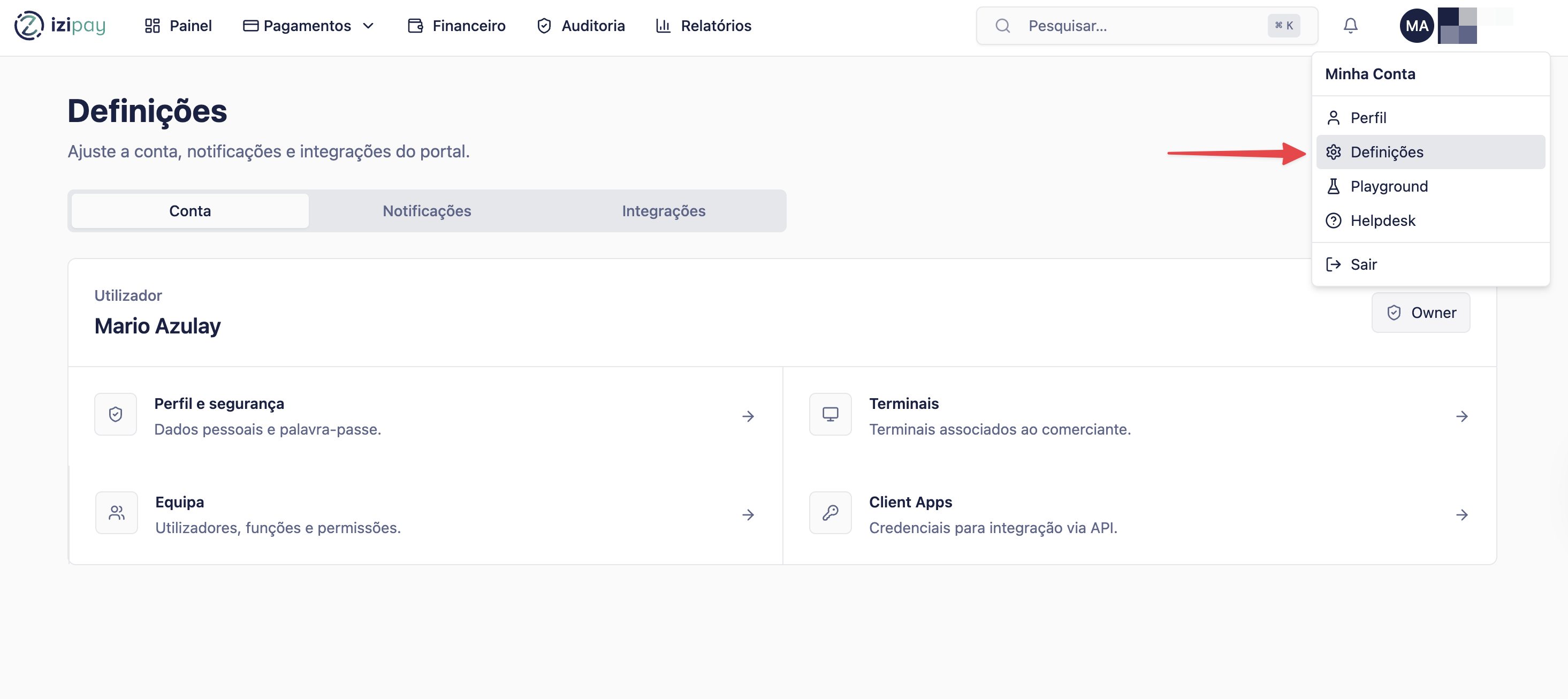
Definições
Shows account shortcuts according to your role. Notificações and Integrações are visible and fetched only for Owner and Manager.
Helpdesk
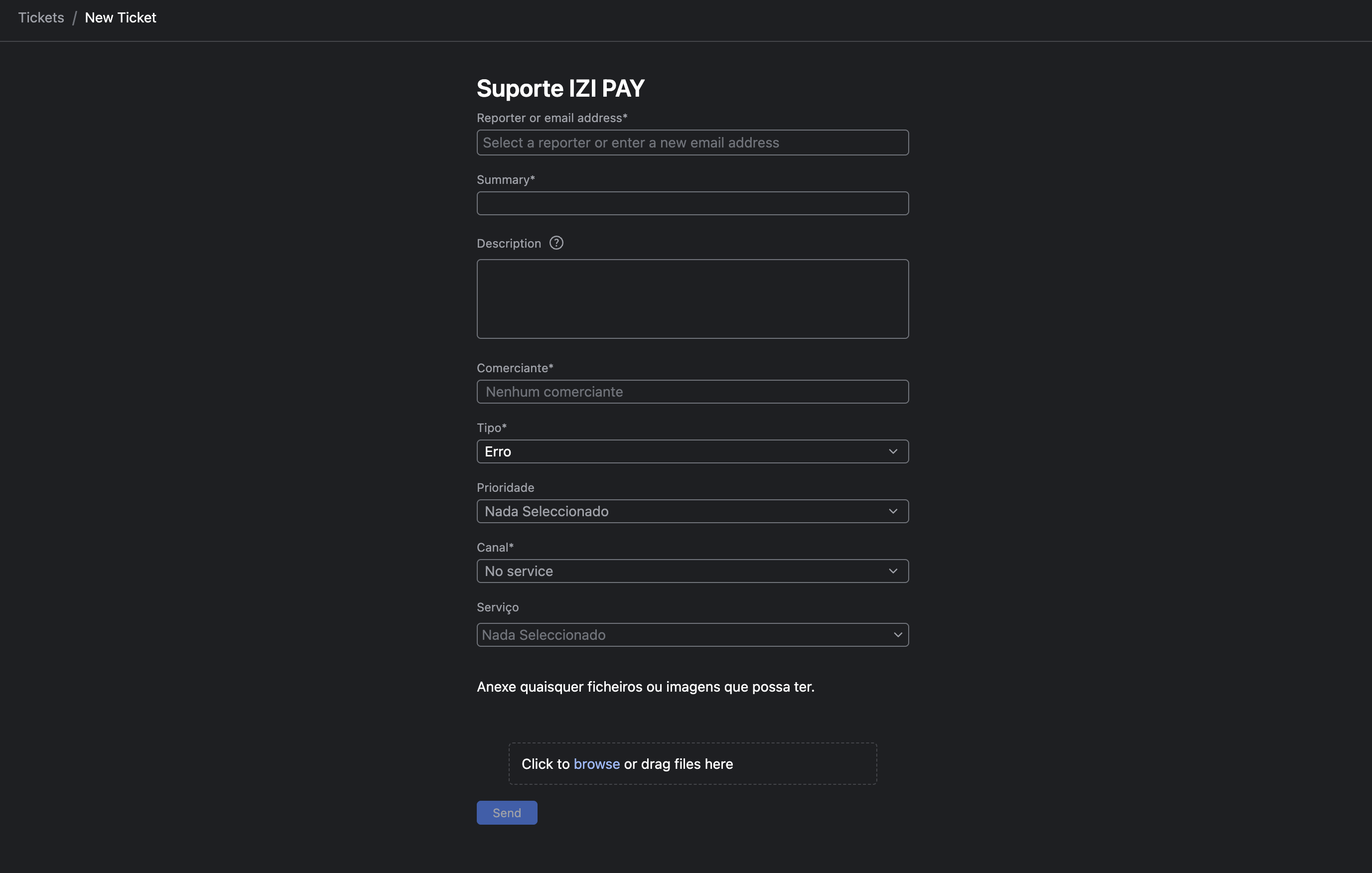
Opens the external IZI Pay support form for questions, incidents, or operational help. It is available to every merchant role.
Profile
The Perfil page displays your name, email address, and current portal role. Name, email, and role changes are managed outside this page and cannot be edited directly.
Every merchant role can change its own password:
- Enter and confirm a new password of at least 8 characters.
- Select Recuperar por email.
- Enter the recovery token sent to the account email.
- Confirm the change.
Never forward the recovery token. If the displayed name, email, or role is incorrect, ask an Owner to check your team access or contact Helpdesk.
Settings
The Definições page is available to all merchant roles, but its links and editable integrations depend on permissions:
- Account: all roles can open Profile and Security. Team, Terminal, and Client App shortcuts appear only when the role has access.
- Notificações: visible and fetched only for Owner and Manager. It displays email, payment-alert, and SMS controls. These switches currently act as portal preferences and may not persist after leaving the page.
- Integrações: visible and fetched only for Owner and Manager. Payment webhooks can be viewed and changed by those roles; Cashier, User, and Viewer cannot load, save, or delete webhook settings.
- A webhook requires a valid
http://orhttps://callback URL and its Access-Key. Changing or deleting a webhook affects payment event delivery for the whole merchant account.
Step by step
- Open the avatar or account menu.
- Confirm the portal role shown under your name.
- Choose Perfil to review your account details or reset your password.
- Choose Definições to review the account links and integrations available to your role.
- Choose Helpdesk when you need support.
- Include enough information for the support team to identify the issue.
Support request checklist
0 of 4 complete
Sample Helpdesk request
Merchant: [merchant name]
Issue: [short description]
Date and time: [date/time]
Amount: [amount] AOA
Reference or payment ID: [reference]
Customer phone: [phone]
What I already checked: [filters/status/actions]
How to confirm success
Success signs
- Your profile details are correct.
- Your settings match how your team works.
- Support requests include enough detail to investigate quickly.
Common fixes
- Never send passwords or one-time security codes through Helpdesk.
- A missing menu normally means the role lacks permission or the merchant does not have the required service enabled.
- Read-only roles may see totals and reports without being allowed to open or change the underlying operation.
- Webhook changes apply to the merchant account, not only to the user who made the change.
- If the issue affects a customer, include the transaction details immediately.