

Portal Guide
Track Payment History
Use Histórico de Pagamentos to search transactions, confirm status, review details, and support reconciliation.
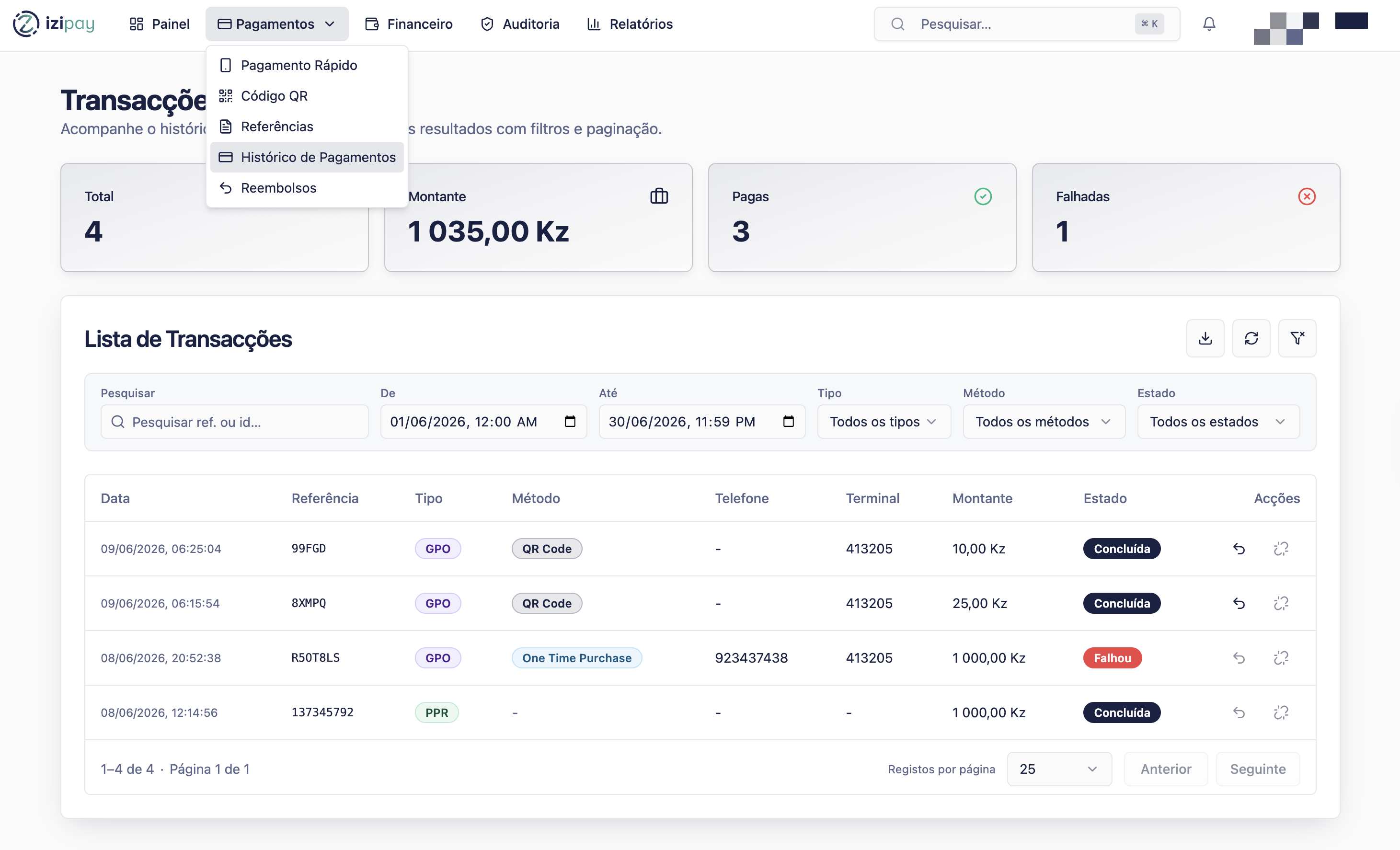
Before you start
- Have at least one search clue ready: reference, customer phone, date, amount, or payment ID.
- Use date filters when the payment list is long.
- Check the final status before taking customer-facing action.
Status guide
Paid or completed
The payment was successfully confirmed.
Authorized
Funds were authorized. Follow your business process before treating it as fully settled.
Pending
The payment is still waiting for confirmation or customer action.
Failed or cancelled
The payment did not complete and may need to be retried.
Step by step
- Open Histórico de Pagamentos.
- Filter by date range, status, reference, amount, or customer information.
- Open the payment row to review details.
- Compare the amount, reference, and status with the customer request.
- Export or copy the details if your team needs reconciliation evidence.
Payment lookup checklist
0 of 4 complete
0%
How to confirm success
Success signs
- You found the expected transaction.
- The amount and reference match the customer request.
- The status supports the action you plan to take.
Common fixes
- If you cannot find the payment, widen the date range.
- If the status conflicts with customer proof, contact Helpdesk with both records.
- If the amount does not match, do not complete the sale without internal approval.
Last modified on