

Portal Guide
Create Payment Links
Use Links when you want to send the customer a simple payment URL by SMS, chat, email, or another messaging channel.
Before you start
- Confirm the amount and phone number.
- Decide how long the link should remain valid.
- Use a channel where the customer can safely open the link.
Payment link fields
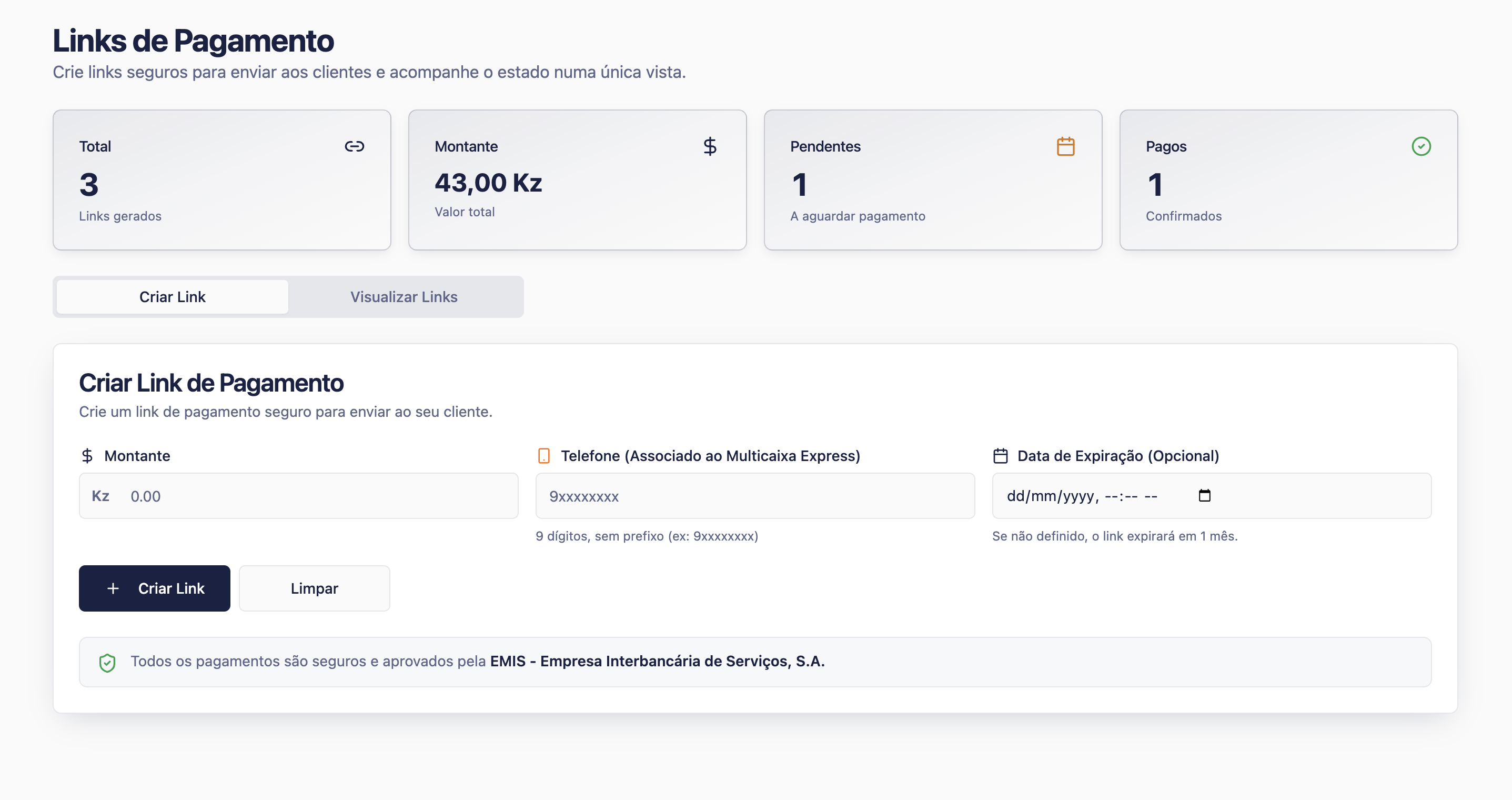
Amount
The value the customer will pay through the link.
Phone
The customer phone number associated with the link.
Expiration
When the link should stop accepting payment.
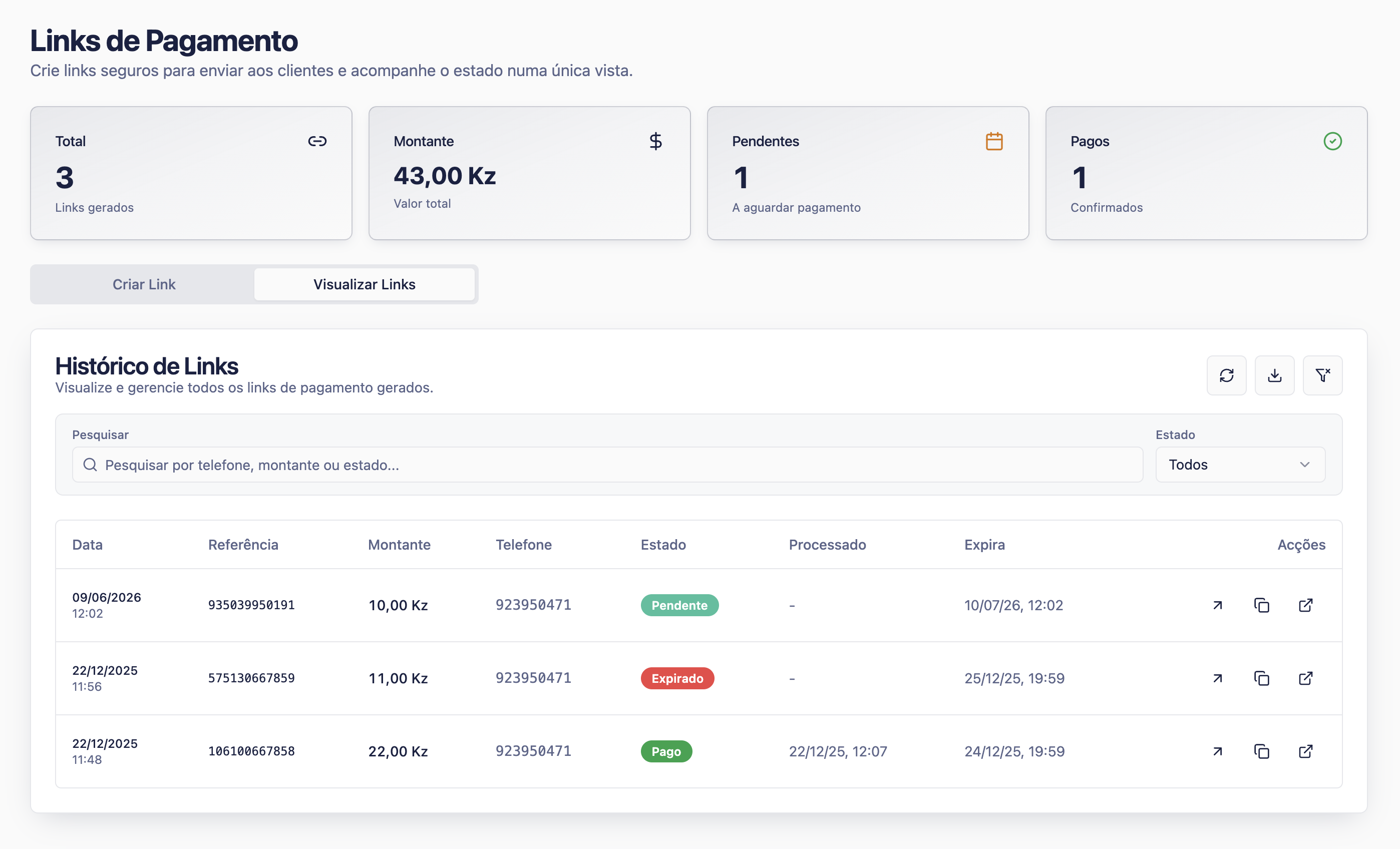
Status
Shows pending, paid, or expired.
Step by step
- Open Links from the payments menu.
- Enter the amount.
- Enter the customer phone number.
- Set the expiration date if needed.
- Create the link.
- Copy the link or share text.
- Send it to the customer.
- Track the link status until it is paid or expired.
Payment link checklist
0 of 5 complete
0%
Sample link message
IZI Pay payment link
Amount: [amount] AOA
Open this link to pay: [payment link]
This link expires on: [expiration]
How to confirm success
Success signs
- The link status changes to paid.
- The processed date is visible.
- The transaction appears in Histórico de Pagamentos.
Common fixes
- If the link expires, create and send a new link.
- If the customer cannot open it, resend the full URL without extra text before or after it.
- If the status is pending, do not mark the sale as complete yet.
Last modified on